Play With Your Discord Squad in WoT: HEAT

Link your Discord account and squad up with friends without ever leaving the game.

WoT: HEAT Team June 23, 2026

Your friends are already on Discord

If your squad is on Discord, now they're in HEAT too. Connecting your Discord account to the game brings your friends list directly into the Friends tab, shows your activity to Discord contacts in real time, and ties your in-game identity to your Discord handle. It takes four steps, it's completely optional, and it works on PC through WGC and Steam, including Steam Deck.
Three reasons to link

See your Discord friends in-game

Once linked, your Discord friends list appears inside the game's Friends tab under the Discord subtab. You can see who's online, send a Squad invite to anyone who also plays, and get a full team into a match without switching apps or copying a link across. The whole coordination loop stays inside HEAT.

Show your friends what you're doing

Rich Presence lets your Discord contacts see your live HEAT activity: the platform you're on, the game mode, whether you're In Garage, Searching for Battle, or In Battle, and how many players are in your Squad. When a squadmate sees you mid-session, they can ask to join without either of you leaving the game. No message needed and no explaining what you're doing. Your status says it all.

One identity across the game and Discord

Linking connects your in-game presence to your Discord account (@username), so your Discord contacts see who you are in HEAT and your Squad in the game knows your Discord handle.

How to link your account

Four steps and you're done.

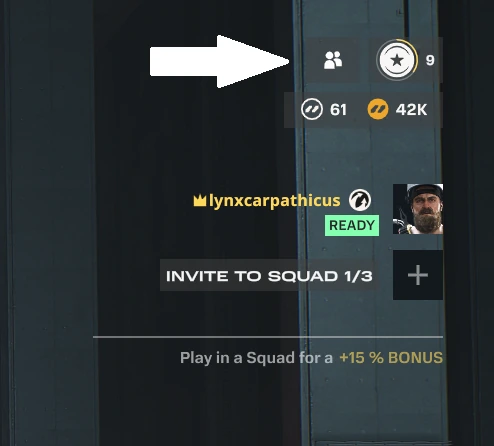
  1. Open the Friends section in the game.

    In-game Social panel with an arrow pointing at the friends and social icon, showing an Invite to Squad 1/3 list with a friend marked Ready and a Play in a Squad for a +15% bonus prompt.
  2. Go to the Discord tab and click Link now.

  3. Approve the permissions on the Discord page that opens. This lets HEAT display your friends list and publish your activity.

  4. Your Discord handle (@username) appears as linked, and your friends list and Rich Presence switch on.

A few things worth knowing

Linking is optional. If you skip it, nothing changes in how you play. Linking only affects what you see inside HEAT, and you can unlink anytime from the Discord app, in its Authorized Apps settings. Once linked, your Discord friends appear under the Discord subtab in the Friends section, and you can invite anyone who also plays HEAT to your Squad.